# 動畫簡介
> 如何在 Flutter 中實現動畫。
設計良好的動畫能讓 UI 更直觀,提升應用程式的精緻感,並改善使用者體驗。Flutter 的動畫支援讓你能輕鬆實作各種動畫類型。許多元件 (Widget)(特別是 [Material 元件][Material widgets])都內建設計規範中定義的標準動態效果,但你也可以自訂這些效果。
## 選擇實作方式
在 Flutter 中建立動畫有多種不同的方法。哪一種方法最適合你?為了協助你判斷,請參考這部影片:[How to choose which Flutter Animation Widget is right for you?][]
(同時也有 [_配套文章_][article1]。)
(若想更深入了解決策過程,請觀看於 Flutter Europe 發表的 [Animations in Flutter done right][] 影片。)
如影片所示,下方的決策樹能協助你決定在實作 Flutter 動畫時該採用哪種方式:
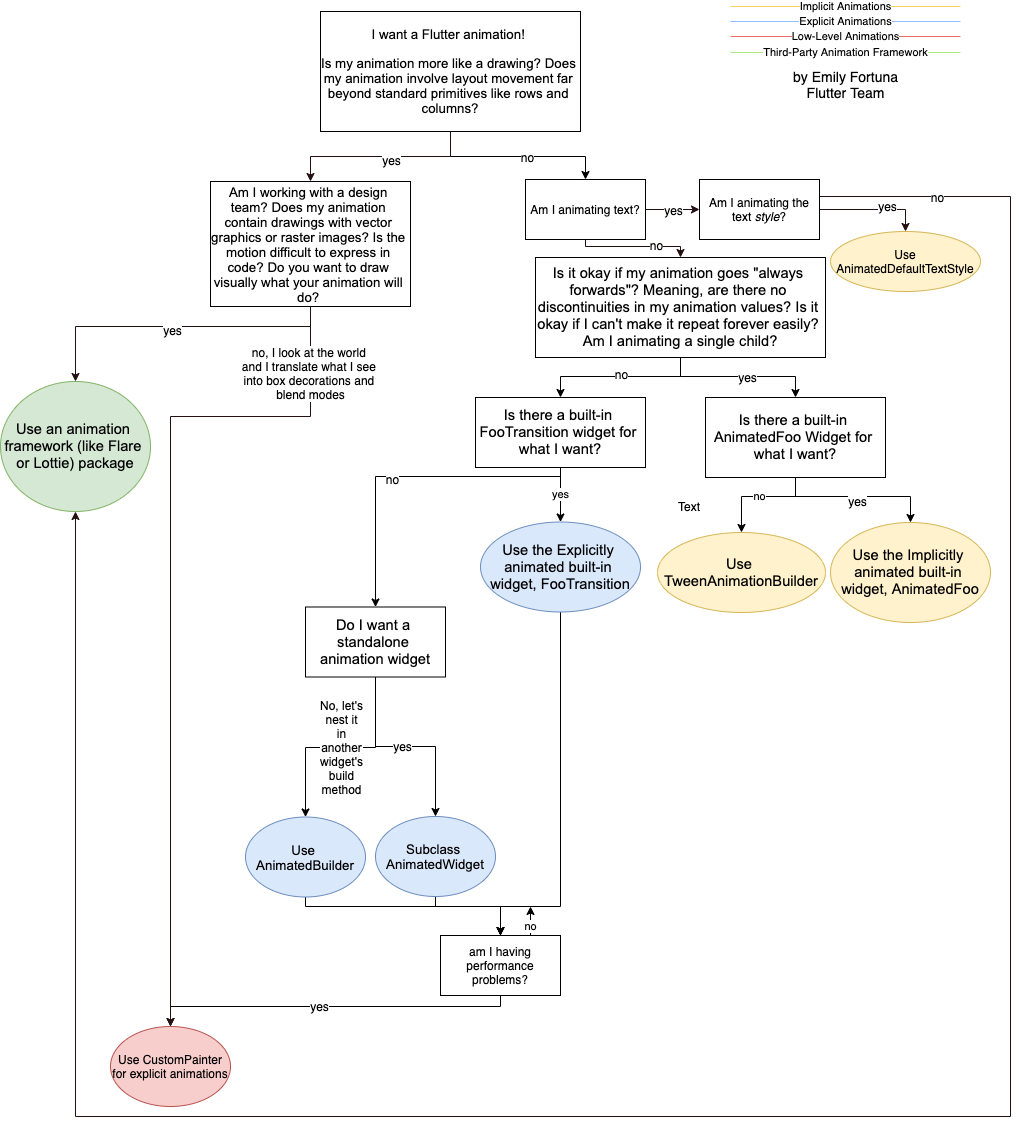
## 動畫深入解析
若想了解 Flutter 動畫的運作方式,請觀看 [Animation deep dive][]。
(同時也有 [_配套文章_][article6]。)
## 隱式與顯式動畫
### 預先封裝的隱式動畫
如果預先封裝的隱式動畫(最容易實作的動畫)能滿足你的需求,請觀看 [Animation basics with implicit animations][]。
(同時也有 [_配套文章_][article2]。)
### 自訂隱式動畫
若要建立自訂的隱式動畫,請觀看 [Creating your own custom implicit animations with TweenAnimationBuilder][]。
(同時也有 [_配套文章_][article3]。)
### 內建顯式動畫
若要建立顯式動畫(由你控制動畫,而非讓框架自動控制),請考慮使用內建的顯式動畫類別。若想了解更多,請觀看
[Making your first directional animations with
built-in explicit animations][]。
(同時也有 [_配套文章_][article4]。)
### 顯式動畫
如果你需要從零開始建立顯式動畫,請觀看
[Creating custom explicit animations with
AnimatedBuilder and AnimatedWidget][]。
(同時也有 [_配套文章_][article5]。)
## 動畫類型
一般來說,動畫可分為 Tween 型與物理模擬型。以下各節將說明這些術語的意義,並提供進一步學習的資源。
### Tween 動畫
Tween 是 _in-betweening_ 的簡稱。在 Tween 動畫中,你會定義起點與終點,以及時間軸與描述過渡時機和速度的曲線。框架會計算如何從起點過渡到終點。
* 請參考 [動畫教學][Animations tutorial],其中範例使用了 Tween。
* 請查閱 [`Tween`][]、[`CurveTween`][] 和
[`TweenSequence`][] 的 API 文件。
### 物理模擬動畫
在物理模擬動畫中,動作會模擬真實世界的行為。例如你拋一顆球時,它落地的位置與時間取決於拋出的速度及離地高度。同樣地,將球綁在彈簧上掉落,與綁在繩子上掉落的運動(與彈跳)也會不同。
* [使用物理模擬為元件加上動畫][Animate a widget using a physics simulation]
這是 Flutter cookbook 動畫章節中的一個範例。
* 請查閱
[`AnimationController.animateWith`][] 和
[`SpringSimulation`][] 的 API 文件。
## 常見動畫模式
多數 UX 或動態設計師會發現,設計 UI 時有些動畫模式會反覆出現。本節列出一些常見的動畫模式,並說明可在哪裡深入學習。
### 動畫化清單或格狀佈局
這種模式會在清單或格狀佈局中,為元素的新增或移除加上動畫效果。
* [`AnimatedList` 範例][`AnimatedList` example]
這個來自 [範例應用程式目錄][Sample app catalog] 的展示,說明如何為清單新增元素或移除選取元素時加入動畫。當使用者透過加號(+)和減號(-)按鈕修改清單時,內部的 Dart 清單會同步更新。
### 共用元素轉場
在這種模式中,使用者會從頁面選取一個元素(通常是圖片),UI 會將該元素以動畫方式轉場到另一個包含更多細節的新頁面。在 Flutter 中,你可以使用 `Hero` 元件實現路由(頁面)間的共用元素轉場。
* [Hero 動畫][Hero animations]
如何建立兩種 Hero 動畫風格:
* Hero 從一個頁面飛到另一個頁面,並同時改變位置與大小。
* Hero 的邊界形狀會從圓形變為方形,並在飛行過程中完成頁面轉換。
* 請查閱
[`Hero`][]、[`Navigator`][] 和 [`PageRoute`][] 類別的 API 文件。
### 交錯動畫(Staggered animation)
交錯動畫會將動畫拆分為多個較小的動作,其中部分動作會延遲執行。這些小動畫可以是連續的,也可以部分或完全重疊。
* [交錯動畫][Staggered Animations]
## 重要動畫概念與類別
Flutter 的動畫系統是以型別化的 [`Animation`][] 物件為基礎。元件(Widget)可以直接在其 build 函式中讀取動畫的當前值並監聽其狀態變化,或將動畫作為更複雜動畫的基礎,傳遞給其他元件使用。
### Animation\
在 Flutter 中,`Animation` 物件與畫面上渲染的內容無關。`Animation` 是一個抽象類別,會公開自己的當前值與狀態(status):dismissed、forward、reverse 或 completed。其中一種常用的動畫型別是 `Animation`。
`Animation` 物件會在一段期間內,依序產生兩個值之間的插值數字。`Animation` 物件的輸出可以是線性的、曲線的、階梯函數,或你能建立的任何其他對應方式。根據 `Animation` 物件的控制方式,它可以反向運行,甚至在中途切換方向。
動畫也可以插值 double 以外的型別,例如 `Animation` 或 `Animation`。
`Animation` 物件具有狀態。其當前值可隨時透過 `.value` getter 取得。
`Animation` 物件不處理渲染(rendering)或 `build()` 函式。
### CurvedAnimation
[`CurvedAnimation`][] 用非線性曲線來定義動畫的進度。
```dart
animation = CurvedAnimation(parent: controller, curve: Curves.easeIn);
```
`CurvedAnimation` 和 `AnimationController`(在接下來的章節中會說明)都是 `Animation` 類型,因此你可以互換傳遞它們。`CurvedAnimation` 會包裝它所修改的物件——你不需要透過繼承 `AnimationController` 來實作曲線(curve)。
你可以將 [`Curves`][] 與 `CurvedAnimation` 一起使用。`Curves` 類別定義了許多常用的曲線(curve),你也可以透過覆寫 `transformInternal()` 自行建立。例如:
```dart
import 'dart:math';
class ShakeCurve extends Curve {
@override
double transformInternal(double t) => t + sin(t * pi * 4) * 0.2;
}
```
如果你想將動畫曲線(animation curve)應用到 `Tween`,
可以考慮使用 [`CurveTween`][]。
### AnimationController
[`AnimationController`][] 是一個特殊的 `Animation`
物件,會在硬體準備好新畫格時產生新數值。預設情況下,
`AnimationController` 會在指定的持續時間內,線性產生從 0.0 到 1.0 的數值。
例如,以下程式碼建立了一個 `Animation` 物件,
但尚未啟動它:
```dart
controller = AnimationController(
duration: const Duration(seconds: 2),
vsync: this,
);
```
`AnimationController` 是從 `Animation` 衍生而來,因此可以在需要 `Animation` 物件的地方使用。不過,`AnimationController` 還有額外的方法可用來控制動畫。例如,你可以透過 `.forward()` 方法來啟動動畫。數值的產生與螢幕刷新率綁定(通常為每秒 60 到 120 個畫格)。每當產生一個數值時,每個 `Animation` 物件都會呼叫其附加的監聽器回呼(callback)。若要為每個子項建立自訂的顯示清單,請參考 [`RepaintBoundary`][]。
建立 `AnimationController` 時,你需要傳入一個 `vsync` 參數。
`vsync` 的存在可防止螢幕外的動畫(offscreen animation)消耗不必要的資源。
你可以將你的 stateful 物件作為 vsync,只需在類別定義中加入
`SingleTickerProviderStateMixin` 即可。
你可以在 GitHub 上的 [animate1][] 範例中找到這個做法。
:::note
控制器的數值會維持在其
`lowerBound` 與 `upperBound`(預設為 0.0 與 1.0)之間,
即使是由 `fling()` 驅動也一樣。
不過,`CurvedAnimation` 可能超出 0.0 到 1.0 的範圍,
即使其父層 `AnimationController` 沒有超出。
根據所選的曲線,`CurvedAnimation` 的輸出範圍可能會比輸入更廣。
例如,像 `Curves.elasticIn` 這類的彈性曲線(elastic curves)
會大幅超出或低於預設範圍。
:::
### Tween
預設情況下,`AnimationController` 物件的範圍是 0.0 到 1.0。
如果你需要不同的範圍或不同的資料型別,可以使用
[`Tween`][] 來設定動畫以插值到其他範圍或資料型別。例如,下列
`Tween` 的範圍是從 -200.0 到 0.0:
```dart
tween = Tween(begin: -200, end: 0);
```
`Tween` 定義了從輸入範圍到輸出範圍的對應關係。
輸入範圍通常是 0.0 到 1.0,但這並非必要條件。
`Tween` 是從 `Animatable` 繼承,而不是從 `Animation` 繼承。
`Animatable`,就像 `Animation` 一樣,輸出的不一定是 double。
例如,`ColorTween` 指定了兩種顏色之間的漸變過程。
```dart
colorTween = ColorTween(begin: Colors.transparent, end: Colors.black54);
```
`Tween` 會儲存可變的 `begin` 和 `end` 值,
但不會追蹤動畫的進度。
相反地,它提供了 [`evaluate(Animation animation)`][]
方法,該方法會使用 `transform` 函式,
將動畫當前的值(介於 0.0 到 1.0 之間)對應到實際的動畫值。
`Animation` 物件的當前值可以透過
`.value` getter 取得。
當動畫值分別為 0.0 和 1.0 時,Tween 會回傳 `begin` 與 `end`。
#### Tween.animate
若要使用 `Tween` 物件,請在 `Tween` 上呼叫 `animate()`,
並傳入控制器物件。例如,
以下程式碼會在 500 毫秒內產生從 0 到 255 的整數值。
```dart
final AnimationController controller = AnimationController(
duration: const Duration(milliseconds: 500),
vsync: this,
);
final Animation alpha = IntTween(
begin: 0,
end: 255,
).animate(controller);
```
:::note
`animate()` 方法回傳的是一個 [`Animation`][],
而不是 [`Animatable`][]。
:::
以下範例展示了一個控制器(controller)、一個曲線(curve),以及一個 `Tween`:
```dart
final AnimationController controller = AnimationController(
duration: const Duration(milliseconds: 500),
vsync: this,
);
final Animation curve = CurvedAnimation(
parent: controller,
curve: Curves.easeOut,
);
final Animation alpha = IntTween(begin: 0, end: 255).animate(curve);
```
### 動畫通知
一個 [`Animation`][] 物件可以擁有監聽器(listener)和狀態監聽器(status listener),
分別透過 `addListener()` 和 `addStatusListener()` 來註冊。
每當動畫的值發生變化時,監聽器會被呼叫。
監聽器最常見的行為是呼叫 `setState()`
以觸發重新建構(rebuild)。
當動畫開始、結束、向前移動或反向移動時,會根據 `AnimationStatus` 呼叫狀態監聽器。
## Codelabs、教學與文章
以下資源是學習 Flutter 動畫框架的好起點。每一份文件都展示了如何撰寫動畫程式碼。
* [Flutter 動畫 codelab][Animations in Flutter codelab]
透過建置多選題測驗遊戲,學習隱式與顯式動畫。
* [動畫教學][Animations tutorial]
說明 Flutter 動畫套件中的基本類別
(控制器、`Animatable`、曲線、監聽器、建構器),
並引導你透過不同動畫 API 實現一系列 Tween 動畫。
此教學也會展示如何建立自訂的顯式動畫。
* [Zero to One with Flutter, part 1][] 及 [part 2][]
Flutter 部落格文章,展示如何透過 Tweening 製作動畫圖表。
* [Casual games toolkit][]
一套包含遊戲範本的工具包,內含如何使用 Flutter 動畫的範例。
## 其他資源
你可以透過以下連結進一步了解 Flutter 動畫:
* 在 pub.dev 上有數個 [animations 套件][animations packages],
其中包含常用模式的預建動畫,例如:
`Container` 轉換、共享軸轉場、淡入淡出轉場,以及淡入轉場。
* [動畫範例][Animation samples],來自 [範例應用程式目錄][Sample app catalog]。
* [動畫食譜][Animation recipes],收錄於 Flutter cookbook。
* [動畫影片][Animation videos],來自 Flutter YouTube 頻道。
* [動畫:總覽][Animations: overview]
介紹 animations 函式庫中的主要類別,以及 Flutter 的動畫架構。
* [動畫與動態元件][Animation and motion widgets]
彙整 Flutter API 中提供的部分動畫元件(Animation and motion widgets)。
* [animation 函式庫][animation library],於 [Flutter API 文件][Flutter API documentation]
Flutter 框架的動畫 API。此連結會帶你前往該函式庫的技術總覽頁面。
[animate1]: https://github.com/flutter/website/tree/main/examples/animation/animate1
[Animate a widget using a physics simulation]: /cookbook/animation/physics-simulation
[`Animatable`]: https://api.flutter.dev/flutter/animation/Animatable-class.html
[`AnimatedList` example]: https://github.com/flutter/samples/blob/main/animations
[`Animation`]: https://api.flutter.dev/flutter/animation/Animation-class.html
[Animation and motion widgets]: /ui/widgets/animation
[Animation basics with implicit animations]: https://www.youtube.com/watch?v=IVTjpW3W33s&list=PLjxrf2q8roU2v6UqYlt_KPaXlnjbYySua&index=1
[Animation deep dive]: https://www.youtube.com/watch?v=PbcILiN8rbo&list=PLjxrf2q8roU2v6UqYlt_KPaXlnjbYySua&index=5
[animation library]: https://api.flutter.dev/flutter/animation/animation-library.html
[Animation recipes]: /cookbook/animation
[Animation samples]: https://github.com/flutter/samples/tree/main/animations#animation-samples
[Animation videos]: https://www.youtube.com/@flutterdev/search?query=animation
[Animations in Flutter done right]: https://www.youtube.com/watch?v=wnARLByOtKA&t=3s
[Animations: overview]: /ui/animations/overview
[animations packages]: https://pub.dev/packages?q=topic%3Aanimation
[Animations tutorial]: /ui/animations/tutorial
[`AnimationController`]: https://api.flutter.dev/flutter/animation/AnimationController-class.html
[`AnimationController.animateWith`]: https://api.flutter.dev/flutter/animation/AnimationController/animateWith.html
[article1]: https://blog.flutter.dev/how-to-choose-which-flutter-animation-widget-is-right-for-you-79ecfb7e72b5
[article2]: https://blog.flutter.dev/flutter-animation-basics-with-implicit-animations-95db481c5916
[article3]: https://blog.flutter.dev/custom-implicit-animations-in-flutter-with-tweenanimationbuilder-c76540b47185
[article4]: https://blog.flutter.dev/directional-animations-with-built-in-explicit-animations-3e7c5e6fbbd7
[article5]: https://blog.flutter.dev/when-should-i-useanimatedbuilder-or-animatedwidget-57ecae0959e8
[article6]: https://blog.flutter.dev/animation-deep-dive-39d3ffea111f
[Casual games toolkit]: /resources/games-toolkit/
[Creating your own custom implicit animations with TweenAnimationBuilder]: https://www.youtube.com/watch?v=6KiPEqzJIKQ&feature=youtu.be
[Creating custom explicit animations with AnimatedBuilder and AnimatedWidget]: https://www.youtube.com/watch?v=fneC7t4R_B0&list=PLjxrf2q8roU2v6UqYlt_KPaXlnjbYySua&index=4
[`Curves`]: https://api.flutter.dev/flutter/animation/Curves-class.html
[`CurvedAnimation`]: https://api.flutter.dev/flutter/animation/CurvedAnimation-class.html
[`CurveTween`]: https://api.flutter.dev/flutter/animation/CurveTween-class.html
[`evaluate(Animation animation)`]: https://api.flutter.dev/flutter/animation/Animatable/evaluate.html
[Flutter API documentation]: https://api.flutter.dev
[`Hero`]: https://api.flutter.dev/flutter/widgets/Hero-class.html
[Hero animations]: /ui/animations/hero-animations
[How to choose which Flutter Animation Widget is right for you?]: https://www.youtube.com/watch?v=GXIJJkq_H8g
[Animations in Flutter codelab]: https://codelabs.developers.google.com/advanced-flutter-animations
[Making your first directional animations with built-in explicit animations]: https://www.youtube.com/watch?v=CunyH6unILQ&list=PLjxrf2q8roU2v6UqYlt_KPaXlnjbYySua&index=3
[Material widgets]: /ui/widgets/material
[`Navigator`]: https://api.flutter.dev/flutter/widgets/Navigator-class.html
[`PageRoute`]: https://api.flutter.dev/flutter/widgets/PageRoute-class.html
[part 2]: https://flutter.dev/blog/zero-to-one-with-flutter-part-two
[`RepaintBoundary`]: https://api.flutter.dev/flutter/widgets/RepaintBoundary-class.html
[Sample app catalog]: https://github.com/flutter/samples
[`SpringSimulation`]: https://api.flutter.dev/flutter/physics/SpringSimulation-class.html
[Staggered Animations]: /ui/animations/staggered-animations
[`Tween`]: https://api.flutter.dev/flutter/animation/Tween-class.html
[`TweenSequence`]: https://api.flutter.dev/flutter/animation/TweenSequence-class.html
[Zero to One with Flutter, part 1]: https://flutter.dev/blog/zero-to-one-with-flutter