# 版面配置
> 了解 Flutter 中常見的版面配置元件。
了解如何使用 Scaffold、AppBar、Column 及 Row 等常見元件 (Widget) 建置版面配置。
title: 你將完成的事項
items:
- title: 使用 Scaffold 和 AppBar 建構應用程式結構
icon: web_asset
- title: 使用 Column 和 Row 排列元件
icon: view_column
- title: 從資料動態產生元件
icon: repeat
- title: 為遊戲棋盤建置格狀版面配置
icon: grid_view
---
### 簡介
由於 Flutter 是一套 UI 工具包,
你會花大量時間使用 Flutter 元件建置版面配置。
在本章節中,你將學習如何使用
一些最常見的版面配置元件建置版面配置。
這包含高階元件,例如
[`Scaffold`][] 和 [`AppBar`][],它們負責畫面的結構排版,
以及低階元件,例如 [`Column`][] 或 [`Row`][],
可將元件垂直或水平排列。
[`Scaffold`]: https://pub.dev/documentation/material_ui/latest/material_ui/Scaffold-class.html
[`AppBar`]: https://pub.dev/documentation/material_ui/latest/material_ui/AppBar-class.html
[`Column`]: https://api.flutter.dev/flutter/widgets/Column-class.html
[`Row`]: https://api.flutter.dev/flutter/widgets/Row-class.html
### `Scaffold` 與 `AppBar`
行動應用程式通常在頂端有一條稱為「應用程式列 (app bar)」的橫列,
可顯示標題、導覽控制項及/或操作按鈕。
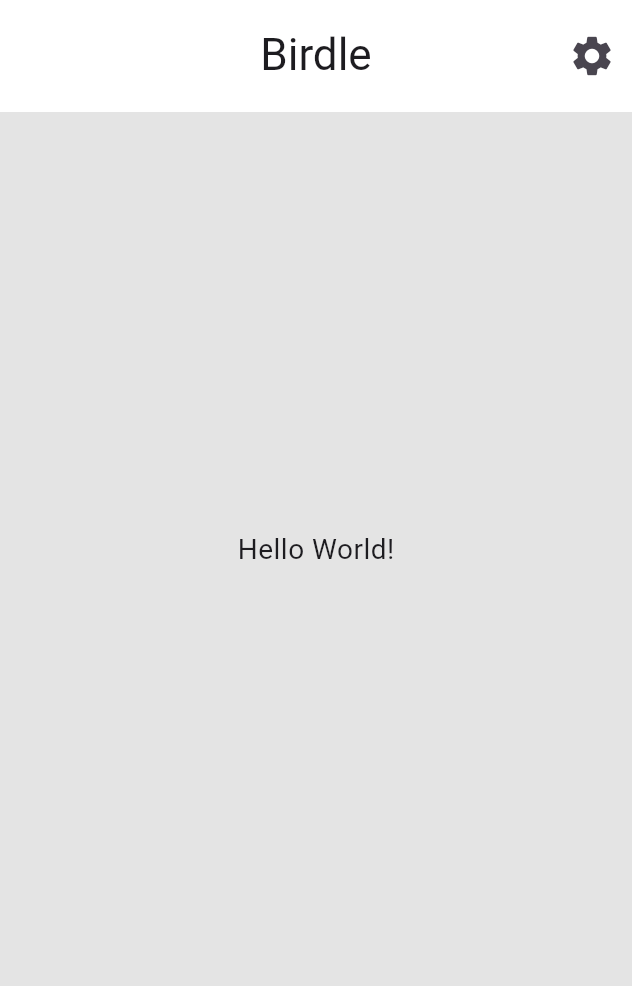 在應用程式中新增應用程式列最簡單的方式,
是使用兩個元件:`Scaffold` 和 `AppBar`。
`Scaffold` 是一個便利元件,提供 Material 風格的頁面版面配置,
讓你可以輕鬆地在應用程式頁面中加入應用程式列、抽屜式導覽、
導覽列等。
`AppBar` 當然就是應用程式列本身。
在你的 `MainApp` 元件的 `build` 方法中,
為 `Scaffold` 元件加入 `AppBar`。
以下程式碼使用了額外的版面配置元件:[`Align`][]。
這會將標題定位到左側,否則預設會置中。
`Text` 元件包含標題本身的文字。
直接傳入列舉或靜態屬性(例如 `Alignment.centerLeft`)
也可以使用 [Dart 的點號簡寫][Dart's dot shorthands] 語法縮短,
你可以在 Dart 官方文件及
[Flutter 簡寫概覽][Flutter shorthands overview] 中進一步了解。
[Dart's dot shorthands]: https://dart.dev/language/dot-shorthands
[Flutter shorthands overview]: /ui/dot-shorthands
```dart
class MainApp extends StatelessWidget {
const MainApp({super.key});
@override
Widget build(BuildContext context) {
return MaterialApp(
home: Scaffold(
appBar: AppBar(
title: const Align(
alignment: Alignment.centerLeft,
child: Text('Birdle'),
),
),
body: const Center(
child: Tile('A', HitType.hit),
),
),
);
}
}
```
[`Align`]: https://api.flutter.dev/flutter/widgets/Align-class.html
#### 更新後的元件樹
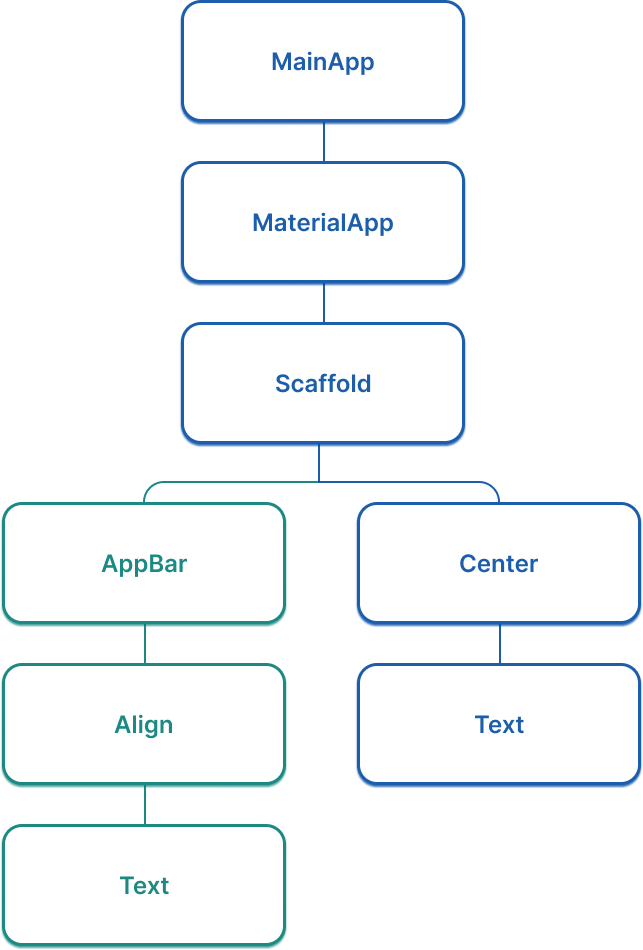
隨著應用程式成長,考量元件樹的結構變得越來越重要。
在此階段,元件樹首次出現了「分支」,
現在的結構如下圖所示:
在應用程式中新增應用程式列最簡單的方式,
是使用兩個元件:`Scaffold` 和 `AppBar`。
`Scaffold` 是一個便利元件,提供 Material 風格的頁面版面配置,
讓你可以輕鬆地在應用程式頁面中加入應用程式列、抽屜式導覽、
導覽列等。
`AppBar` 當然就是應用程式列本身。
在你的 `MainApp` 元件的 `build` 方法中,
為 `Scaffold` 元件加入 `AppBar`。
以下程式碼使用了額外的版面配置元件:[`Align`][]。
這會將標題定位到左側,否則預設會置中。
`Text` 元件包含標題本身的文字。
直接傳入列舉或靜態屬性(例如 `Alignment.centerLeft`)
也可以使用 [Dart 的點號簡寫][Dart's dot shorthands] 語法縮短,
你可以在 Dart 官方文件及
[Flutter 簡寫概覽][Flutter shorthands overview] 中進一步了解。
[Dart's dot shorthands]: https://dart.dev/language/dot-shorthands
[Flutter shorthands overview]: /ui/dot-shorthands
```dart
class MainApp extends StatelessWidget {
const MainApp({super.key});
@override
Widget build(BuildContext context) {
return MaterialApp(
home: Scaffold(
appBar: AppBar(
title: const Align(
alignment: Alignment.centerLeft,
child: Text('Birdle'),
),
),
body: const Center(
child: Tile('A', HitType.hit),
),
),
);
}
}
```
[`Align`]: https://api.flutter.dev/flutter/widgets/Align-class.html
#### 更新後的元件樹
隨著應用程式成長,考量元件樹的結構變得越來越重要。
在此階段,元件樹首次出現了「分支」,
現在的結構如下圖所示:
 ### 為遊戲頁面建立版面配置元件
在你的 `main.dart` 檔案中加入以下程式碼,
新增一個名為 `GamePage` 的元件。
此元件最終將顯示遊戲本身所需的 UI 元素。
```dart title="lib/main.dart"
class GamePage extends StatelessWidget {
GamePage({super.key});
// This object is part of the game.dart file.
// It manages wordle logic, and is outside the scope of this tutorial.
final Game _game = Game();
@override
Widget build(BuildContext context) {
// TODO: Replace with screen contents
return Container();
}
}
```
接著更新你的 `MainApp` 元件,改為建立並
顯示 `GamePage` 元件,而非 `Tile` 元件。
```dart highlightLines=14
class MainApp extends StatelessWidget {
const MainApp({super.key});
@override
Widget build(BuildContext context) {
return MaterialApp(
home: Scaffold(
appBar: AppBar(
title: const Align(
alignment: Alignment.centerLeft,
child: Text('Birdle'),
),
),
body: Center(child: GamePage()),
),
);
}
}
```
:::note 解決 `const` 建構子錯誤
由於 `GamePage` 會初始化一個非常數欄位
(`final Game _game = Game();`),
它的建構子不能是 `const`。
如果你先前寫的是 const Center(...) 或 const MaterialApp(...),
Dart 會回報以下錯誤:
"The constructor being called isn't a const constructor."
要解決此問題,請從 Center(或 MaterialApp)
(或外層的父元件)移除 const 關鍵字,
並且只在引數皆為常數的元件上使用 `const`,
例如 `const Align(...)`。
:::
### 使用 `Column` 和 `Row` 排列元件
`GamePage` 的版面配置包含顯示使用者猜測結果的方格。
### 為遊戲頁面建立版面配置元件
在你的 `main.dart` 檔案中加入以下程式碼,
新增一個名為 `GamePage` 的元件。
此元件最終將顯示遊戲本身所需的 UI 元素。
```dart title="lib/main.dart"
class GamePage extends StatelessWidget {
GamePage({super.key});
// This object is part of the game.dart file.
// It manages wordle logic, and is outside the scope of this tutorial.
final Game _game = Game();
@override
Widget build(BuildContext context) {
// TODO: Replace with screen contents
return Container();
}
}
```
接著更新你的 `MainApp` 元件,改為建立並
顯示 `GamePage` 元件,而非 `Tile` 元件。
```dart highlightLines=14
class MainApp extends StatelessWidget {
const MainApp({super.key});
@override
Widget build(BuildContext context) {
return MaterialApp(
home: Scaffold(
appBar: AppBar(
title: const Align(
alignment: Alignment.centerLeft,
child: Text('Birdle'),
),
),
body: Center(child: GamePage()),
),
);
}
}
```
:::note 解決 `const` 建構子錯誤
由於 `GamePage` 會初始化一個非常數欄位
(`final Game _game = Game();`),
它的建構子不能是 `const`。
如果你先前寫的是 const Center(...) 或 const MaterialApp(...),
Dart 會回報以下錯誤:
"The constructor being called isn't a const constructor."
要解決此問題,請從 Center(或 MaterialApp)
(或外層的父元件)移除 const 關鍵字,
並且只在引數皆為常數的元件上使用 `const`,
例如 `const Align(...)`。
:::
### 使用 `Column` 和 `Row` 排列元件
`GamePage` 的版面配置包含顯示使用者猜測結果的方格。
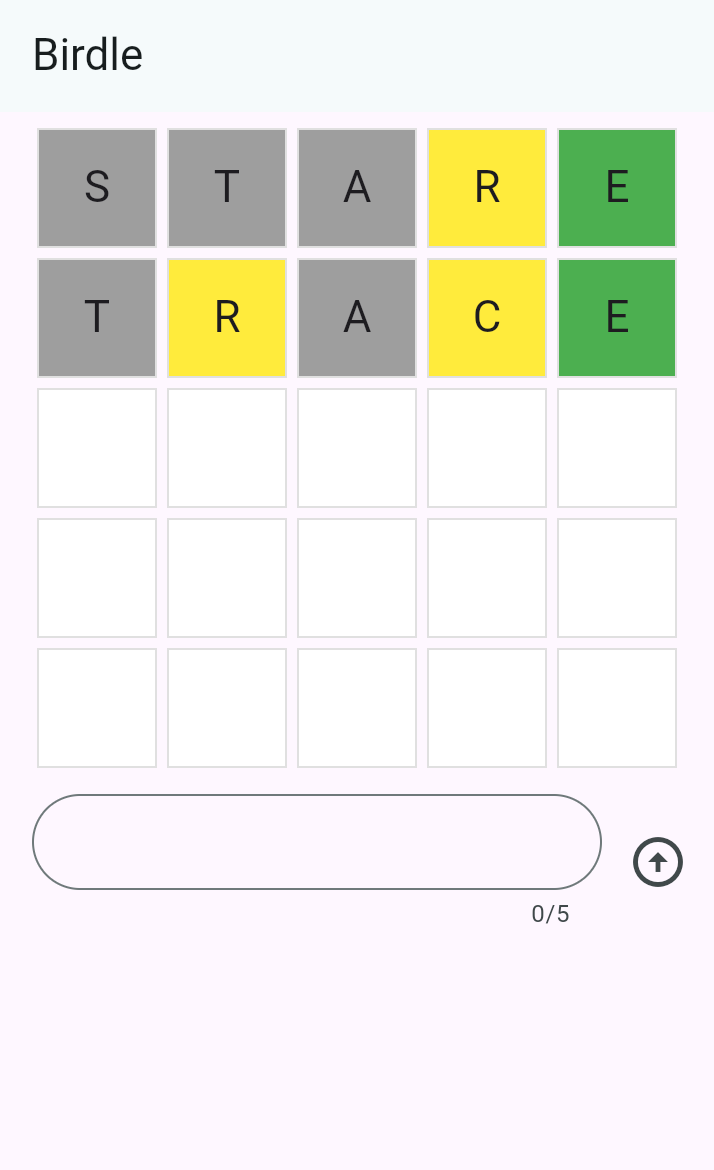 建置此版面配置有多種方式。
最簡單的是使用 `Column` 和 `Row` 元件。
每列包含五個代表猜測中五個字母的方格,
共有五列。
因此你需要一個 `Column`,其中包含五個 `Row` 元件作為子元件,
而每列各包含五個子元件。
首先,將 `GamePage.build` 中的 `Container` 替換為
一個以 `Column` 元件為子元件的 `Padding` 元件:
```dart
class GamePage extends StatelessWidget {
GamePage({super.key});
// This manages game logic, and is out of scope for this lesson.
final Game _game = Game();
@override
Widget build(BuildContext context) {
return Padding(
padding: const EdgeInsets.all(8.0),
child: Column(
spacing: 5.0,
children: [
// Add children next.
],
),
);
}
}
```
`spacing` 屬性會在主軸上的每個元素之間加入五個像素的間距。
在 `Column.children` 中,針對 `_game.guesses` 清單中的每個元素,
新增一個 `Row` 元件作為子元件。
:::note
這個 `guesses` 清單是一個**固定大小**的清單,初始包含五個
元素,每個元素對應一次*可能的*猜測。
此清單始終包含恰好五個元素,
因此永遠會渲染五列。
:::
```dart
class GamePage extends StatelessWidget {
GamePage({super.key});
// This manages game logic, and is out of scope for this lesson.
final Game _game = Game();
@override
Widget build(BuildContext context) {
return Padding(
padding: const EdgeInsets.all(8.0),
child: Column(
spacing: 5.0,
children: [
for (final guess in _game.guesses)
Row(
spacing: 5.0,
children: [
// We'll add the tiles here later.
],
),
],
),
);
}
}
```
`children` 清單中的 `for` 迴圈稱為[集合 for 元素 (collection for element)][collection for element],
這是一種 Dart 語法,可讓你在集合於執行時期建置時
以迭代方式加入項目。
這種語法糖讓你更輕鬆地處理
元件集合,提供了以下寫法的宣告式替代方案:
```dart
[..._game.guesses.map((guess) => Row(/* ... */))],
```
在此範例中,它會為 `Game` 物件上的每個猜測,
向欄中新增五個 `Row` 元件。
[collection for element]: https://dart.dev/language/collections#for-element
#### 更新後的元件樹
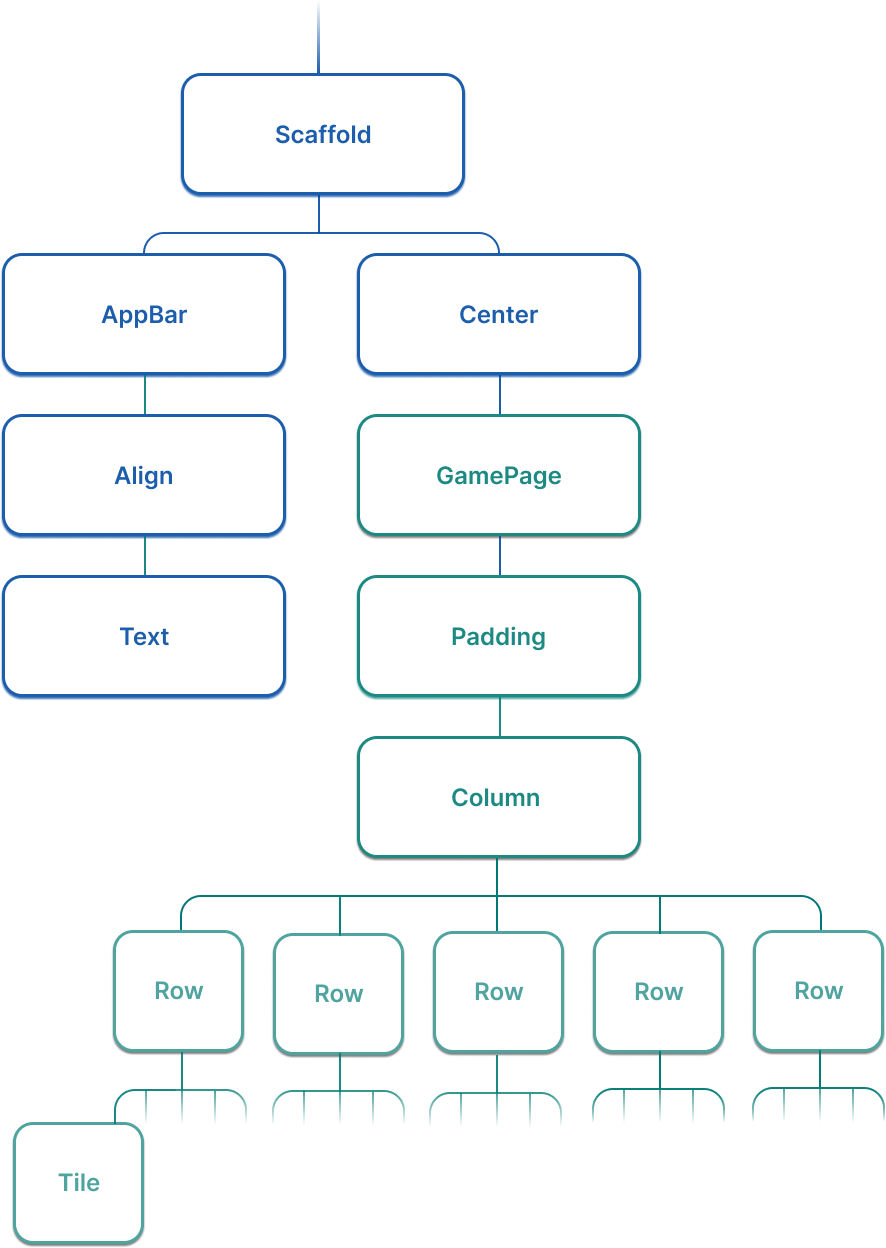
本課程中,應用程式的元件樹大幅擴展。
現在,其結構更像以下(簡化後的)圖示:
建置此版面配置有多種方式。
最簡單的是使用 `Column` 和 `Row` 元件。
每列包含五個代表猜測中五個字母的方格,
共有五列。
因此你需要一個 `Column`,其中包含五個 `Row` 元件作為子元件,
而每列各包含五個子元件。
首先,將 `GamePage.build` 中的 `Container` 替換為
一個以 `Column` 元件為子元件的 `Padding` 元件:
```dart
class GamePage extends StatelessWidget {
GamePage({super.key});
// This manages game logic, and is out of scope for this lesson.
final Game _game = Game();
@override
Widget build(BuildContext context) {
return Padding(
padding: const EdgeInsets.all(8.0),
child: Column(
spacing: 5.0,
children: [
// Add children next.
],
),
);
}
}
```
`spacing` 屬性會在主軸上的每個元素之間加入五個像素的間距。
在 `Column.children` 中,針對 `_game.guesses` 清單中的每個元素,
新增一個 `Row` 元件作為子元件。
:::note
這個 `guesses` 清單是一個**固定大小**的清單,初始包含五個
元素,每個元素對應一次*可能的*猜測。
此清單始終包含恰好五個元素,
因此永遠會渲染五列。
:::
```dart
class GamePage extends StatelessWidget {
GamePage({super.key});
// This manages game logic, and is out of scope for this lesson.
final Game _game = Game();
@override
Widget build(BuildContext context) {
return Padding(
padding: const EdgeInsets.all(8.0),
child: Column(
spacing: 5.0,
children: [
for (final guess in _game.guesses)
Row(
spacing: 5.0,
children: [
// We'll add the tiles here later.
],
),
],
),
);
}
}
```
`children` 清單中的 `for` 迴圈稱為[集合 for 元素 (collection for element)][collection for element],
這是一種 Dart 語法,可讓你在集合於執行時期建置時
以迭代方式加入項目。
這種語法糖讓你更輕鬆地處理
元件集合,提供了以下寫法的宣告式替代方案:
```dart
[..._game.guesses.map((guess) => Row(/* ... */))],
```
在此範例中,它會為 `Game` 物件上的每個猜測,
向欄中新增五個 `Row` 元件。
[collection for element]: https://dart.dev/language/collections#for-element
#### 更新後的元件樹
本課程中,應用程式的元件樹大幅擴展。
現在,其結構更像以下(簡化後的)圖示:
 :::note Challenge
為每列中猜測允許的每個字母新增一個 `Tile`。
`guess` 中的每個元素都是一個型別為
`({String char, HitType type})` 的 [record][]。
使用巢狀迴圈迭代每次猜測中的字母。
**解答:**
```dart title="lib/main.dart" collapsed
class GamePage extends StatelessWidget {
GamePage({super.key});
// This manages game logic, and is out of scope for this lesson.
final Game _game = Game();
@override
Widget build(BuildContext context) {
return Padding(
padding: const EdgeInsets.all(8.0),
child: Column(
spacing: 5.0,
children: [
for (final guess in _game.guesses)
Row(
spacing: 5.0,
children: [
for (final letter in guess) Tile(letter.char, letter.type),
],
),
],
),
);
}
}
```
:::
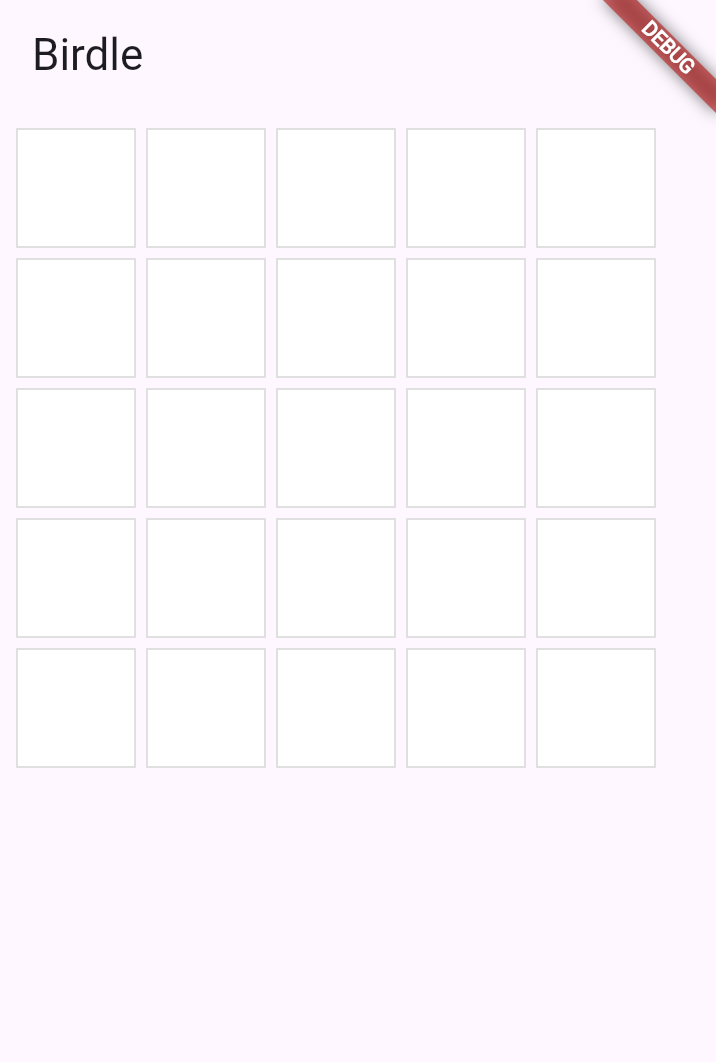
重新載入應用程式後,你應該會看到一個 5x5 的白色方格陣列。
:::note Challenge
為每列中猜測允許的每個字母新增一個 `Tile`。
`guess` 中的每個元素都是一個型別為
`({String char, HitType type})` 的 [record][]。
使用巢狀迴圈迭代每次猜測中的字母。
**解答:**
```dart title="lib/main.dart" collapsed
class GamePage extends StatelessWidget {
GamePage({super.key});
// This manages game logic, and is out of scope for this lesson.
final Game _game = Game();
@override
Widget build(BuildContext context) {
return Padding(
padding: const EdgeInsets.all(8.0),
child: Column(
spacing: 5.0,
children: [
for (final guess in _game.guesses)
Row(
spacing: 5.0,
children: [
for (final letter in guess) Tile(letter.char, letter.type),
],
),
],
),
);
}
}
```
:::
重新載入應用程式後,你應該會看到一個 5x5 的白色方格陣列。
 [record]: https://dart.dev/language/records
### 回顧
title: 你完成的事項
subtitle: 以下是本課程中你所建置及學習內容的摘要。
completed: true
items:
- title: 使用 Scaffold 和 AppBar 建構應用程式結構
icon: web_asset
details: >-
你使用 `Scaffold` 提供 Material 風格的頁面版面配置,並使用
`AppBar` 在應用程式頂端加入標題列。
這些高階元件為你的應用程式提供了標準且精緻的結構。
- title: 使用 Column 和 Row 排列元件
icon: view_column
details: >-
`Column` 垂直排列元件,`Row` 水平排列元件。
這些是你在 Flutter 開發中會不斷使用的基本版面配置元件。
`spacing` 屬性可在子元件之間加入一致的間距。
- title: 從資料動態產生元件
icon: repeat
details: >-
你使用集合 for 元素從清單建置元件。
這種宣告式方法讓你能建置自動且直觀地
反映資料的使用者介面,
這是 Flutter 開發的核心模式。
- title: 建置遊戲棋盤格狀版面配置
icon: grid_view
details: >-
透過在 `Column` 中巢狀嵌入 `Row` 元件並使用巢狀迴圈,
你建立了一個 5x5 的 `Tile` 元件格狀版面。
你的應用程式現在已顯示完整的遊戲棋盤版面配置!
### 自我測驗
- question: Column 和 Row 元件的主要差異是什麼?
options:
- text: Column 用於可捲動內容;Row 用於靜態內容。
correct: false
explanation: Column 和 Row 都用於版面配置,而非捲動。捲動請使用 ListView 或 SingleChildScrollView。
- text: Column 垂直排列子元件;Row 水平排列子元件。
correct: true
explanation: Column 沿垂直軸排列子元件,而 Row 則使用水平軸。
- text: Column 可有無限個子元件;Row 限制為兩個。
correct: false
explanation: 兩個元件都可以有任意數量的子元件。
- text: Column 需要 Scaffold 作為父元件;Row 則不需要。
correct: false
explanation: 這兩個元件都不需要以 Scaffold 作為父元件。
- question: Scaffold 元件在 Flutter 應用程式中提供什麼功能?
options:
- text: 僅為頁面提供背景顏色。
correct: false
explanation: Scaffold 提供的功能遠不止這些,包含應用程式列、抽屜式導覽等結構。
- text: 一個 Material 風格的頁面版面配置,包含應用程式列、主體、抽屜式導覽等插槽。
correct: true
explanation: Scaffold 是一個便利元件,提供標準的 Material 頁面結構。
- text: 一種在不同頁面之間導覽的方式。
correct: false
explanation: 導覽由 Navigator 處理,而非 Scaffold。
- text: 頁面的自動狀態管理。
correct: false
explanation: Scaffold 不管理狀態;你需要使用 StatefulWidget 或狀態管理解決方案來處理這個問題。
[record]: https://dart.dev/language/records
### 回顧
title: 你完成的事項
subtitle: 以下是本課程中你所建置及學習內容的摘要。
completed: true
items:
- title: 使用 Scaffold 和 AppBar 建構應用程式結構
icon: web_asset
details: >-
你使用 `Scaffold` 提供 Material 風格的頁面版面配置,並使用
`AppBar` 在應用程式頂端加入標題列。
這些高階元件為你的應用程式提供了標準且精緻的結構。
- title: 使用 Column 和 Row 排列元件
icon: view_column
details: >-
`Column` 垂直排列元件,`Row` 水平排列元件。
這些是你在 Flutter 開發中會不斷使用的基本版面配置元件。
`spacing` 屬性可在子元件之間加入一致的間距。
- title: 從資料動態產生元件
icon: repeat
details: >-
你使用集合 for 元素從清單建置元件。
這種宣告式方法讓你能建置自動且直觀地
反映資料的使用者介面,
這是 Flutter 開發的核心模式。
- title: 建置遊戲棋盤格狀版面配置
icon: grid_view
details: >-
透過在 `Column` 中巢狀嵌入 `Row` 元件並使用巢狀迴圈,
你建立了一個 5x5 的 `Tile` 元件格狀版面。
你的應用程式現在已顯示完整的遊戲棋盤版面配置!
### 自我測驗
- question: Column 和 Row 元件的主要差異是什麼?
options:
- text: Column 用於可捲動內容;Row 用於靜態內容。
correct: false
explanation: Column 和 Row 都用於版面配置,而非捲動。捲動請使用 ListView 或 SingleChildScrollView。
- text: Column 垂直排列子元件;Row 水平排列子元件。
correct: true
explanation: Column 沿垂直軸排列子元件,而 Row 則使用水平軸。
- text: Column 可有無限個子元件;Row 限制為兩個。
correct: false
explanation: 兩個元件都可以有任意數量的子元件。
- text: Column 需要 Scaffold 作為父元件;Row 則不需要。
correct: false
explanation: 這兩個元件都不需要以 Scaffold 作為父元件。
- question: Scaffold 元件在 Flutter 應用程式中提供什麼功能?
options:
- text: 僅為頁面提供背景顏色。
correct: false
explanation: Scaffold 提供的功能遠不止這些,包含應用程式列、抽屜式導覽等結構。
- text: 一個 Material 風格的頁面版面配置,包含應用程式列、主體、抽屜式導覽等插槽。
correct: true
explanation: Scaffold 是一個便利元件,提供標準的 Material 頁面結構。
- text: 一種在不同頁面之間導覽的方式。
correct: false
explanation: 導覽由 Navigator 處理,而非 Scaffold。
- text: 頁面的自動狀態管理。
correct: false
explanation: Scaffold 不管理狀態;你需要使用 StatefulWidget 或狀態管理解決方案來處理這個問題。