# 使用 Firestore 新增多人連線支援
> 如何使用 Firebase Cloud Firestore 在你的遊戲中實作多人連線。
多人連線遊戲需要一種方式來同步玩家之間的遊戲狀態。
大致上,多人連線遊戲可分為兩種類型:
1. **高 tick 率**。
這類遊戲需要每秒多次、低延遲地同步遊戲狀態。
包括動作遊戲、運動遊戲、格鬥遊戲等。
2. **低 tick 率**。
這類遊戲只需偶爾同步遊戲狀態,延遲影響較小。
包括紙牌遊戲、策略遊戲、益智遊戲等。
這有點類似於即時遊戲與回合制遊戲的區分,雖然這個比喻並不完全貼切。
例如,即時戰略遊戲(real-time strategy games)顧名思義是在即時運作,
但這並不代表它們需要高 tick 率。
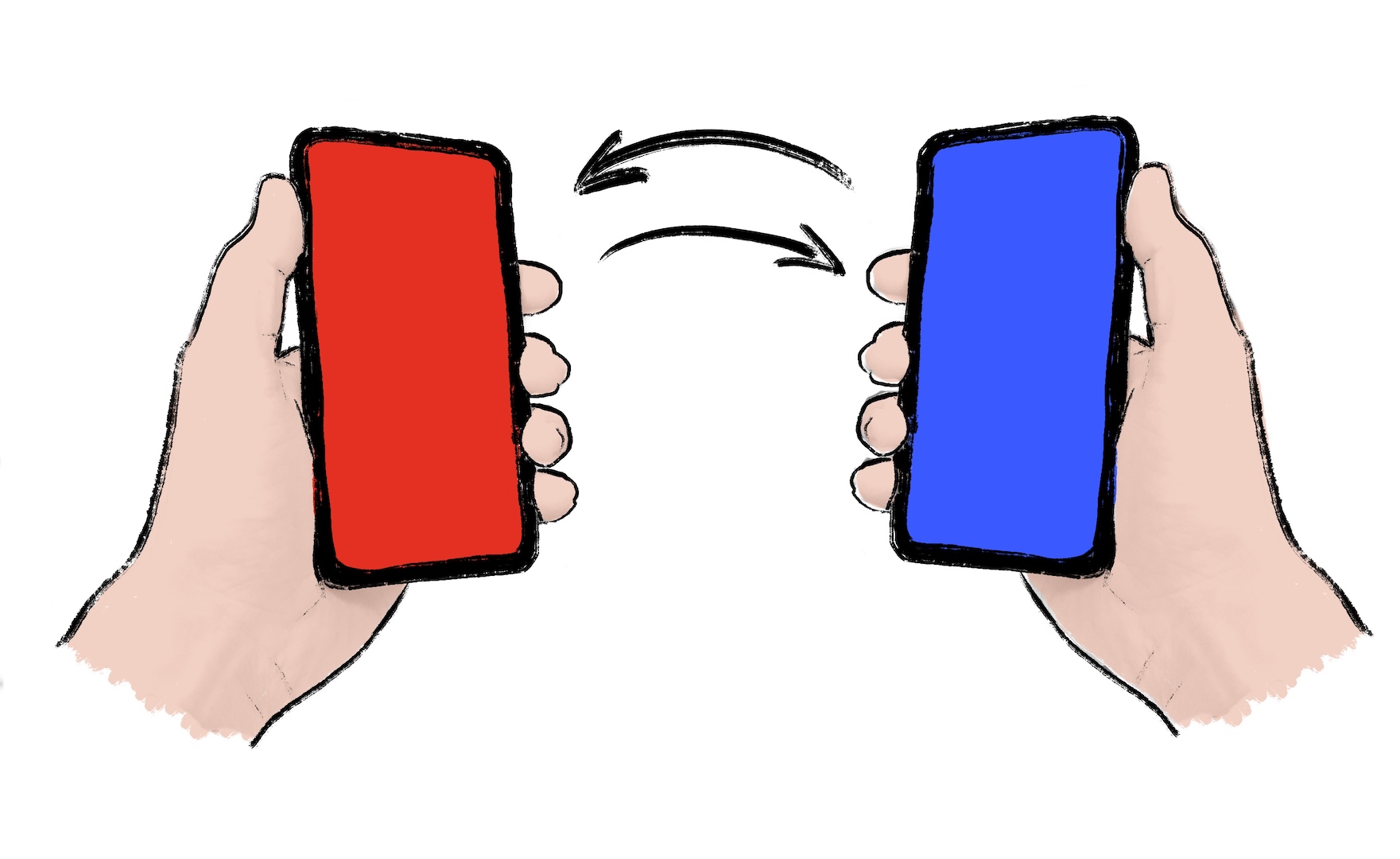
這類遊戲可以在本地端模擬玩家互動之間發生的大部分事件,
因此不需要頻繁地同步遊戲狀態。
{:.site-illustration}
如果你作為開發者可以選擇低 tick 率,建議優先選擇。
低 tick 率可降低延遲需求與伺服器成本。
有時候,遊戲確實需要高 tick 率的同步。
在這種情況下,像 Firestore 這樣的解決方案*並不適合*。
請選擇專用的多人連線伺服器解決方案,例如 [Nakama][]。
Nakama 有提供 [Dart 套件][Dart package]。
如果你預期你的遊戲只需要低 tick 率的同步,
請繼續閱讀下方內容。
本教學將示範如何使用
[`cloud_firestore` 套件][`cloud_firestore` package]
在你的遊戲中實作多人連線功能。
本教學不需要伺服器,
而是透過兩個或多個客戶端利用 Cloud Firestore 共享遊戲狀態。
[`cloud_firestore` package]: https://pub.dev/packages/cloud_firestore
[Dart package]: https://pub.dev/packages/nakama
[Nakama]: https://heroiclabs.com/nakama/
## 1. 為你的遊戲準備多人連線
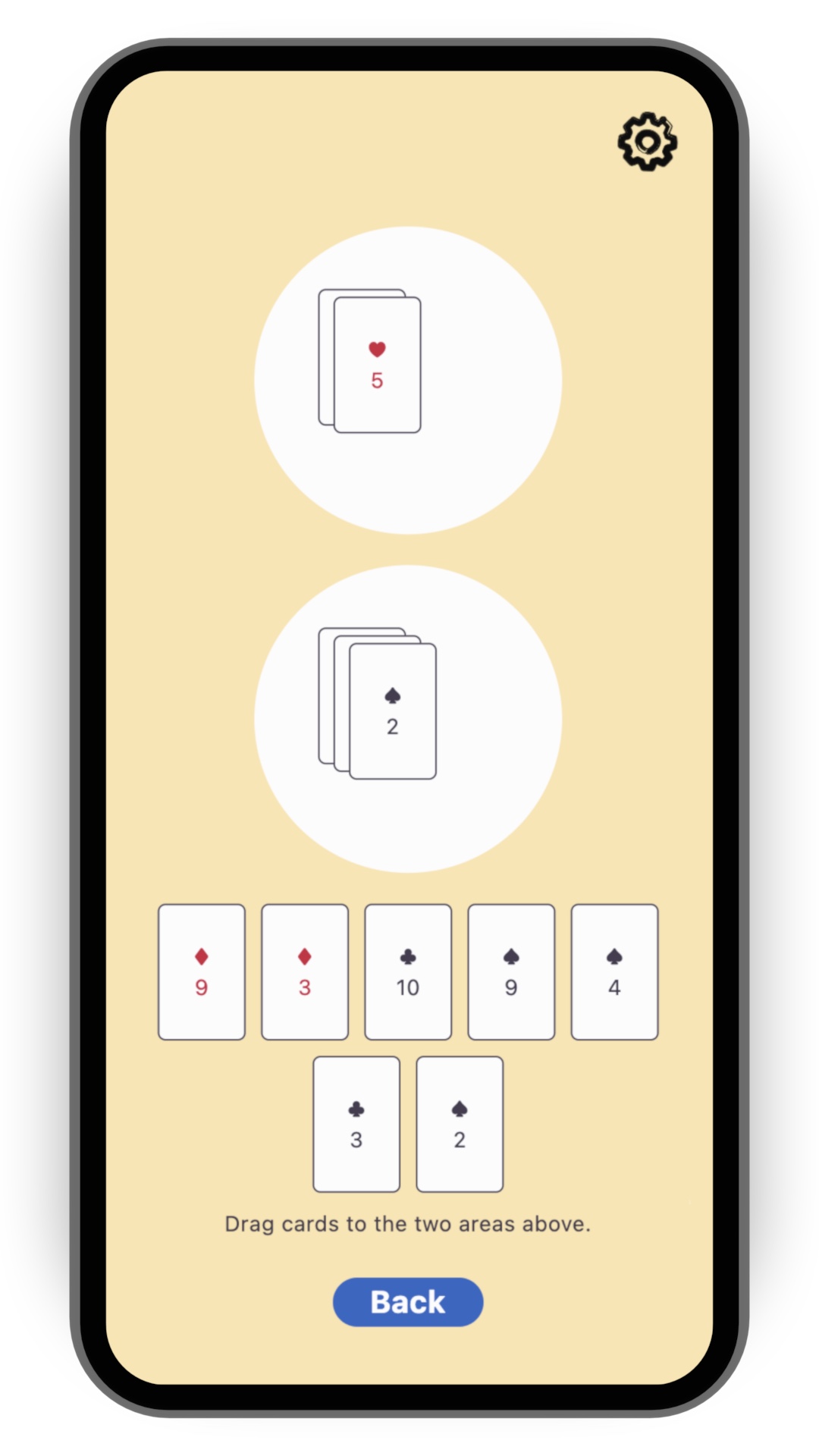
撰寫你的遊戲程式碼時,需允許遊戲狀態能夠因應本地事件與遠端事件而改變。
本地事件可以是玩家操作或某些遊戲邏輯;
遠端事件則可能是來自伺服器的世界更新。
{:.site-mobile-screenshot .site-illustration}
為了簡化本教學,請先從
[`card`][] 範本開始,你可以在
[`flutter/games` repository][] 找到該範本。
執行以下指令來複製該 repository:
```console
git clone https://github.com/flutter/games.git
```
在 `templates/card` 中開啟專案。
:::note
你可以略過這個步驟,直接使用你自己的遊戲專案來跟隨本教學食譜。
請在適當的位置調整相關程式碼。
:::
[`card`]: https://github.com/flutter/games/tree/main/templates/card#readme
[`flutter/games` repository]: https://github.com/flutter/games
## 2. 安裝 Firestore
[Cloud Firestore][] 是一個可橫向擴展的雲端 NoSQL 文件資料庫,
並內建即時同步功能。
這非常適合我們的需求。
它能讓遊戲狀態即時同步到雲端資料庫,
確保每位玩家都能看到相同的狀態。
如果你想快速了解 Cloud Firestore,可以參考以下 15 分鐘的入門影片:
要將 Firestore 加入你的 Flutter 專案,
請依照 [Cloud Firestore 入門指南][Get started with Cloud Firestore] 的前兩個步驟操作:
* [建立 Cloud Firestore 資料庫][Create a Cloud Firestore database]
* [設定你的開發環境][Set up your development environment]
完成後,你應該會有以下成果:
* 一個已在雲端啟用、**測試模式**的 Firestore 資料庫
* 一個已產生的 `firebase_options.dart` 檔案
* 已將相關插件 (plugin) 加入你的 `pubspec.yaml`
這個步驟*不需要*撰寫任何 Dart 程式碼。
當你閱讀到該指南中需要撰寫 Dart 程式碼的步驟時,請回到本教學食譜繼續操作。
[Cloud Firestore]: https://cloud.google.com/firestore/
[Create a Cloud Firestore database]: https://firebase.google.com/docs/firestore/quickstart#create
[Get started with Cloud Firestore]: https://firebase.google.com/docs/firestore/quickstart
[Set up your development environment]: https://firebase.google.com/docs/firestore/quickstart#set_up_your_development_environment
## 3. 初始化 Firestore
1. 開啟 `lib/main.dart`,並匯入相關套件,
以及在前一個步驟由 `flutterfire configure` 產生的 `firebase_options.dart` 檔案。
```dart
import 'package:cloud_firestore/cloud_firestore.dart';
import 'package:firebase_core/firebase_core.dart';
import 'firebase_options.dart';
```
2. 在 `lib/main.dart` 中呼叫 `runApp()` 之前,請在其上方加入以下程式碼:
```dart
WidgetsFlutterBinding.ensureInitialized();
await Firebase.initializeApp(options: DefaultFirebaseOptions.currentPlatform);
```
這可確保在遊戲啟動時初始化 Firebase。
3. 將 Firestore 實例加入應用程式。
這樣,任何元件 (Widget) 都能存取這個實例。
如果需要,元件也可以對實例不存在的情況做出反應。
若要在 `card` 範本中實現這個功能,你可以使用
`provider` 套件
(這個套件已經作為相依套件安裝好)。
請將樣板中的 `runApp(MyApp())` 替換為以下內容:
```dart
runApp(Provider.value(value: FirebaseFirestore.instance, child: MyApp()));
```
請將 provider 放在 `MyApp` 的外層,而不是放在其內部。
這樣可以讓你在沒有 Firebase 的情況下測試應用程式。
:::note
如果你*沒有*使用 `card` 範本,
你必須[安裝 `provider` 套件][install the `provider` package]
或使用你自己的方式,讓程式碼中各處都能存取 `FirebaseFirestore`
實例。
:::
[install the `provider` package]: https://pub.dev/packages/provider/install
## 4. 建立 Firestore 控制器類別
雖然你可以直接與 Firestore 溝通,
但建議你撰寫專屬的控制器類別,
讓程式碼更易讀且更容易維護。
控制器的實作方式會依你的遊戲
以及多人遊戲體驗的設計細節而有所不同。
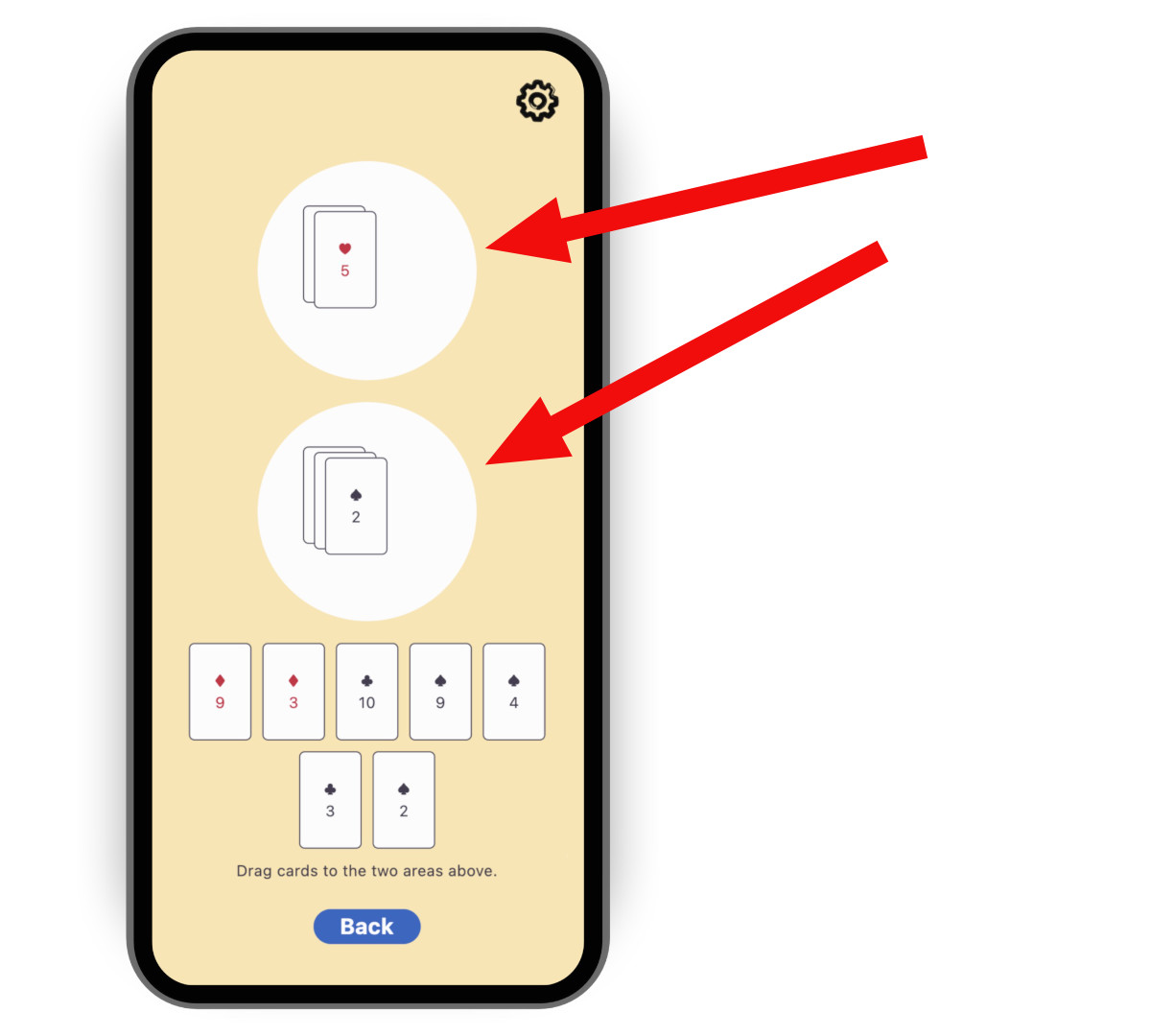
以 `card` 範本為例,
你可以同步兩個圓形遊戲區域的內容。
雖然這還不足以實現完整的多人遊戲體驗,
但已經是一個很好的起點。
{:.site-mobile-screenshot .site-illustration}
要建立控制器,請複製下方程式碼,
然後貼到一個名為
`lib/multiplayer/firestore_controller.dart` 的新檔案中。
```dart
import 'dart:async';
import 'package:cloud_firestore/cloud_firestore.dart';
import 'package:flutter/foundation.dart';
import 'package:logging/logging.dart';
import '../game_internals/board_state.dart';
import '../game_internals/playing_area.dart';
import '../game_internals/playing_card.dart';
class FirestoreController {
static final _log = Logger('FirestoreController');
final FirebaseFirestore instance;
final BoardState boardState;
/// For now, there is only one match. But in order to be ready
/// for match-making, put it in a Firestore collection called matches.
late final DocumentReference> _matchRef = instance
.collection('matches')
.doc('match_1');
late final DocumentReference> _areaOneRef = _matchRef
.collection('areas')
.doc('area_one')
.withConverter>(
fromFirestore: _cardsFromFirestore,
toFirestore: _cardsToFirestore,
);
late final DocumentReference> _areaTwoRef = _matchRef
.collection('areas')
.doc('area_two')
.withConverter>(
fromFirestore: _cardsFromFirestore,
toFirestore: _cardsToFirestore,
);
late final StreamSubscription _areaOneFirestoreSubscription;
late final StreamSubscription _areaTwoFirestoreSubscription;
late final StreamSubscription _areaOneLocalSubscription;
late final StreamSubscription _areaTwoLocalSubscription;
FirestoreController({required this.instance, required this.boardState}) {
// Subscribe to the remote changes (from Firestore).
_areaOneFirestoreSubscription = _areaOneRef.snapshots().listen((snapshot) {
_updateLocalFromFirestore(boardState.areaOne, snapshot);
});
_areaTwoFirestoreSubscription = _areaTwoRef.snapshots().listen((snapshot) {
_updateLocalFromFirestore(boardState.areaTwo, snapshot);
});
// Subscribe to the local changes in game state.
_areaOneLocalSubscription = boardState.areaOne.playerChanges.listen((_) {
_updateFirestoreFromLocalAreaOne();
});
_areaTwoLocalSubscription = boardState.areaTwo.playerChanges.listen((_) {
_updateFirestoreFromLocalAreaTwo();
});
_log.fine('Initialized');
}
void dispose() {
_areaOneFirestoreSubscription.cancel();
_areaTwoFirestoreSubscription.cancel();
_areaOneLocalSubscription.cancel();
_areaTwoLocalSubscription.cancel();
_log.fine('Disposed');
}
/// Takes the raw JSON snapshot coming from Firestore and attempts to
/// convert it into a list of [PlayingCard]s.
List _cardsFromFirestore(
DocumentSnapshot> snapshot,
SnapshotOptions? options,
) {
final data = snapshot.data()?['cards'] as List?;
if (data == null) {
_log.info('No data found on Firestore, returning empty list');
return [];
}
try {
return data
.cast>()
.map(PlayingCard.fromJson)
.toList();
} catch (e) {
throw FirebaseControllerException(
'Failed to parse data from Firestore: $e',
);
}
}
/// Takes a list of [PlayingCard]s and converts it into a JSON object
/// that can be saved into Firestore.
Map _cardsToFirestore(
List cards,
SetOptions? options,
) {
return {'cards': cards.map((c) => c.toJson()).toList()};
}
/// Updates Firestore with the local state of [area].
Future _updateFirestoreFromLocal(
PlayingArea area,
DocumentReference> ref,
) async {
try {
_log.fine('Updating Firestore with local data (${area.cards}) ...');
await ref.set(area.cards);
_log.fine('... done updating.');
} catch (e) {
throw FirebaseControllerException(
'Failed to update Firestore with local data (${area.cards}): $e',
);
}
}
/// Sends the local state of `boardState.areaOne` to Firestore.
void _updateFirestoreFromLocalAreaOne() {
_updateFirestoreFromLocal(boardState.areaOne, _areaOneRef);
}
/// Sends the local state of `boardState.areaTwo` to Firestore.
void _updateFirestoreFromLocalAreaTwo() {
_updateFirestoreFromLocal(boardState.areaTwo, _areaTwoRef);
}
/// Updates the local state of [area] with the data from Firestore.
void _updateLocalFromFirestore(
PlayingArea area,
DocumentSnapshot> snapshot,
) {
_log.fine('Received new data from Firestore (${snapshot.data()})');
final cards = snapshot.data() ?? [];
if (listEquals(cards, area.cards)) {
_log.fine('No change');
} else {
_log.fine('Updating local data with Firestore data ($cards)');
area.replaceWith(cards);
}
}
}
class FirebaseControllerException implements Exception {
final String message;
FirebaseControllerException(this.message);
@override
String toString() => 'FirebaseControllerException: $message';
}
```
請注意下列這段程式碼的特點:
* 控制器的建構子會接收 `BoardState`。
這讓控制器能夠操作遊戲的本地狀態。
* 控制器同時訂閱本地變更(以更新 Firestore)以及遠端變更(以更新本地狀態與 UI)。
* 欄位 `_areaOneRef` 和 `_areaTwoRef`
是 Firebase 文件參照(document references)。
它們描述了每個區域的資料儲存位置,
以及如何在本地 Dart 物件(`List`)
和遠端 JSON 物件(`Map`)之間進行轉換。
Firestore API 允許我們透過 `.snapshots()` 訂閱這些參照,
並用 `.set()` 寫入資料。
## 5. 使用 Firestore 控制器
1. 開啟負責啟動遊戲對戰(play session)的檔案:
以 `card` 範本為例,為 `lib/play_session/play_session_screen.dart`。
你會在這個檔案中實例化 Firestore 控制器。
2. 匯入 Firebase 以及控制器:
```dart
import 'package:cloud_firestore/cloud_firestore.dart';
import '../multiplayer/firestore_controller.dart';
```
3. 在 `_PlaySessionScreenState` 類別中新增一個可為 null 的欄位,
用來儲存 controller 實例:
```dart
FirestoreController? _firestoreController;
```
4. 在同一個類別的 `initState()` 方法中,
新增程式碼以嘗試讀取 FirebaseFirestore 實例,
並在成功時建立控制器。
你已經在 *初始化 Firestore* 步驟中,
將 `FirebaseFirestore` 實例加入到 `main.dart`。
```dart
final firestore = context.read();
if (firestore == null) {
_log.warning(
"Firestore instance wasn't provided. "
'Running without _firestoreController.',
);
} else {
_firestoreController = FirestoreController(
instance: firestore,
boardState: _boardState,
);
}
```
5. 使用同一個類別的 `dispose()` 方法來釋放 controller。
```dart
_firestoreController?.dispose();
```
## 6. 測試遊戲
1. 在兩個不同的裝置上運行遊戲,
或在同一裝置的兩個不同視窗中運行。
2. 觀察在一個裝置上將卡牌加入某個區域時,
另一個裝置也會即時顯示該卡牌。
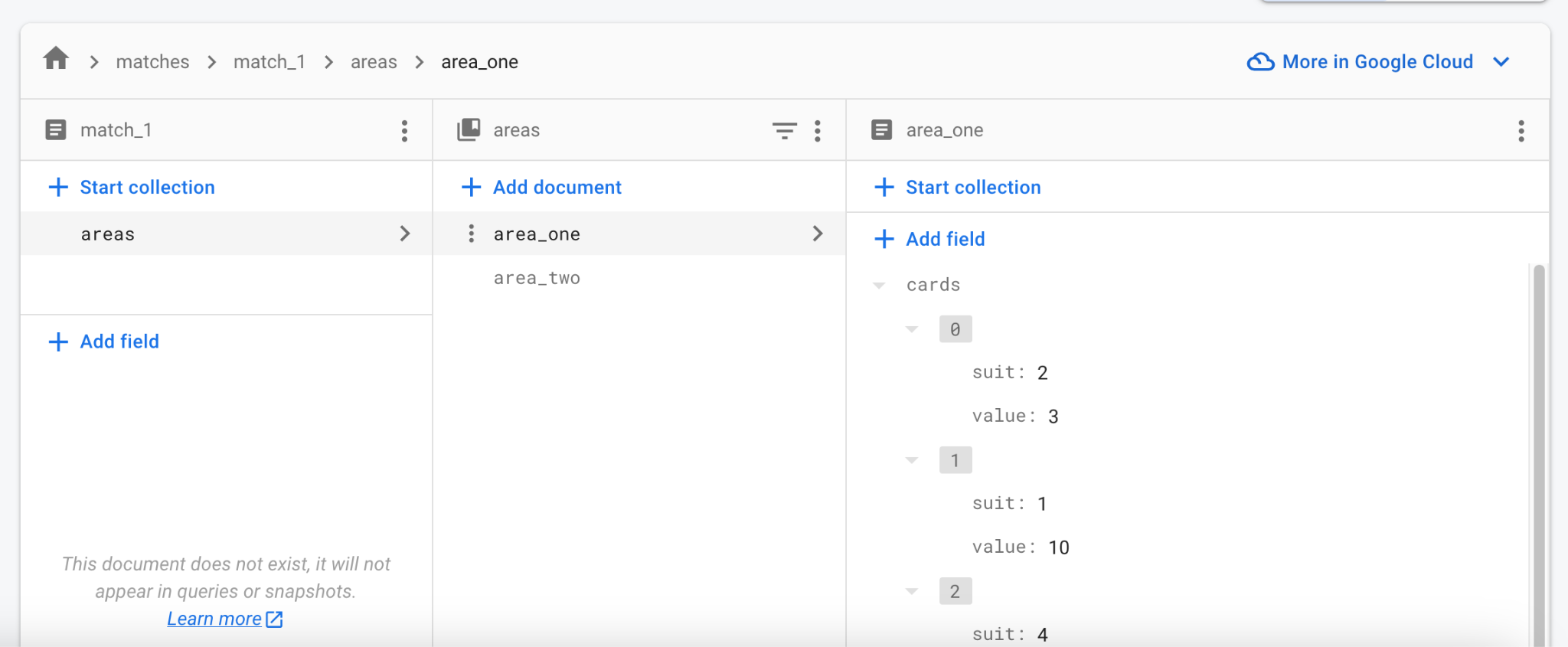
3. 開啟 [Firebase 網頁主控台][Firebase web console],
並導覽至你的專案的 Firestore Database。
4. 觀察資料如何即時更新。
你甚至可以在主控台直接編輯資料,
所有正在運行的客戶端都會同步更新。
[Firebase web console]: https://console.firebase.google.com/
### 疑難排解
測試 Firebase 整合時,最常見的問題包括:
* **遊戲在嘗試連接 Firebase 時當機。**
* Firebase 整合尚未正確設定。
請回到 *步驟 2*,並確保有執行 `flutterfire configure`
作為該步驟的一部分。
* **遊戲在 macOS 上無法與 Firebase 通訊。**
* macOS 應用程式預設無法存取網際網路。
請先啟用 [網路權限 (internet entitlement)][internet entitlement]。
[internet entitlement]: /data-and-backend/networking#macos
## 7. 下一步
此時,遊戲已能在多個客戶端之間
實現近乎即時且可靠的狀態同步。
但目前還沒有實際的遊戲規則:
例如什麼時候可以出什麼卡牌,以及會有什麼結果。
這部分取決於你設計的遊戲,留給你自行嘗試。
{:.site-illustration}
目前,對戰的共享狀態僅包含
兩個遊戲區域及其內的卡牌。
你也可以將其他資料存入 `_matchRef`,
例如玩家是誰、輪到誰出牌等。
如果你不確定從哪裡開始,
可以參考 [一兩個 Firestore codelab][a Firestore codelab or two]
來熟悉這個 API。
一開始,單一場對戰就足以
讓你和同事、朋友測試多人遊戲功能。
當你接近發佈時,
可以開始考慮身份驗證和配對機制。
幸運的是,Firebase 提供了
[內建的使用者驗證方式][built-in way to authenticate users],
而 Firestore 的資料結構也能支援多場對戰。
你可以將多筆紀錄加入 matches collection,
而不是只用單一 `match_1`。
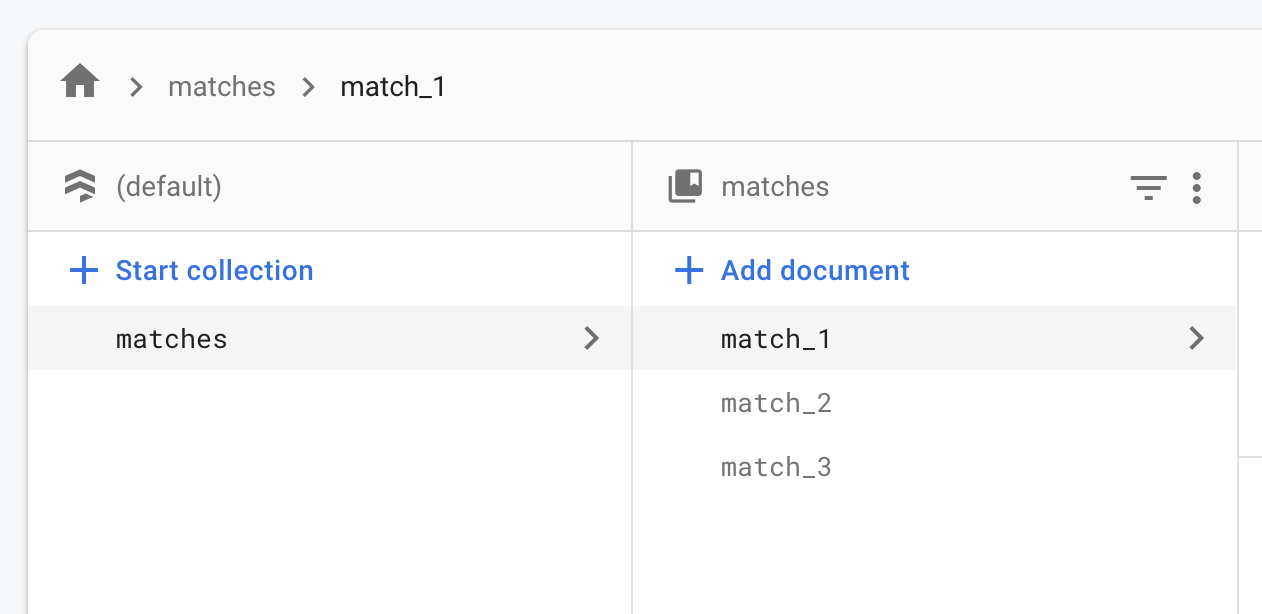
一場線上對戰可以從「等待中」狀態開始,
此時只有第一位玩家在場。
其他玩家可以在大廳看到「等待中」的對戰。
當有足夠玩家加入後,對戰就會變成「進行中」。
具體的實作方式仍取決於
你想要打造的線上體驗類型。
但基本原則相同:
有一個大型的文件集合,
每一份文件都代表一場進行中或潛在的對戰。
[a Firestore codelab or two]: https://codelabs.developers.google.com/?product=flutter&text=firestore
[built-in way to authenticate users]: https://firebase.google.com/docs/auth/flutter/start